
No Sound in Discord Screen Share – Here Is the Fix
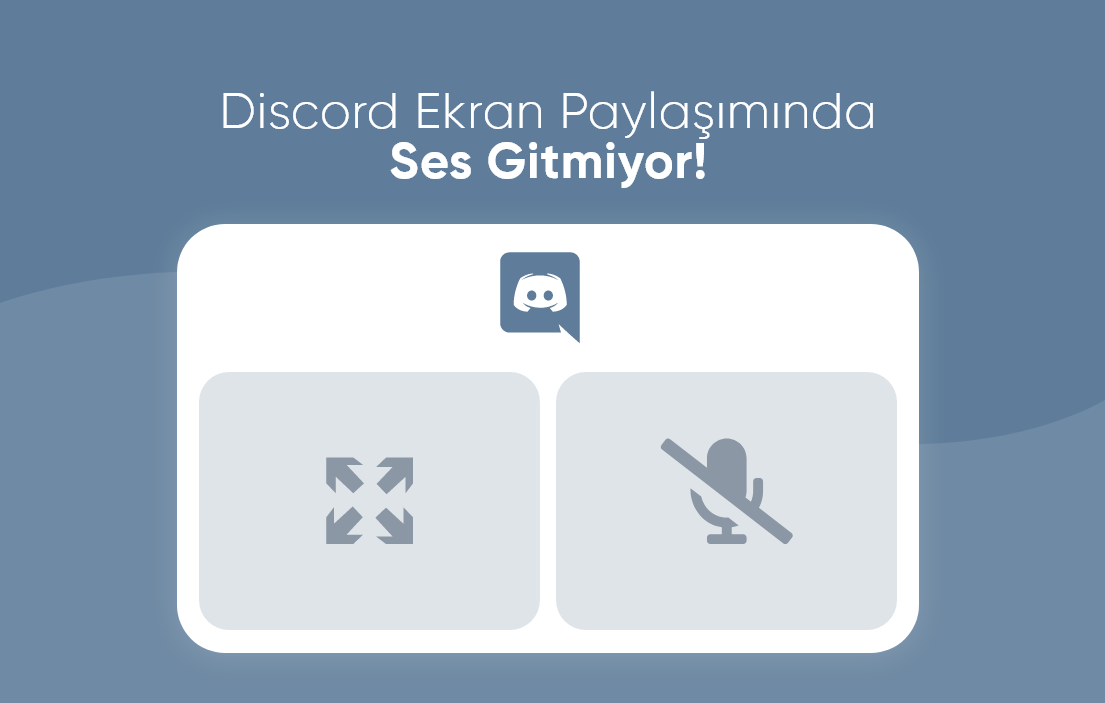
Discord is very handy when you want to share your screen while gaming or during an online meeting. However many users complain that the other side cannot hear any sound during screen share. If you say Discord screen share has no sound you are not alone. In this guide you will find the most common causes and step by step solutions.
1. Make Sure Audio Sharing Is Enabled
When you start screen share in Discord you must enable the With Sound option so that system audio is sent to the other side. While starting the share check the pop up window and make sure the Sound button is turned on. This option usually works more stable when you share the entire screen instead of a single app window.
2. Check Which Window You Are Sharing
Some apps do not send sound correctly through Discord screen share. Browsers and some media players can cause audio issues. If possible try another browser that works more stable for streaming such as Microsoft Edge instead of old or problematic browsers.
3. Check System Audio Settings
If you are on Windows system audio routing or Discord input and output devices may be set incorrectly.
- Right click the volume icon on the taskbar and open Sound settings then App volume and device preferences.
- Check the volume level of Discord and the app that plays the sound.
- Make sure the correct input and output devices are selected.
4. Reset Discord Audio Settings
Sometimes internal Discord audio settings become corrupted. Resetting them is a quick way to fix many problems.
Settings gear icon → Voice and Video → scroll down and click Reset Voice Settings
5. Run Discord as Administrator
On some systems Discord must run with administrator rights to share system audio correctly.
- Right click the Discord icon and choose Run as administrator.
- Start screen share again and test the sound.
6. Disable Hardware Acceleration
The hardware acceleration feature in Discord can sometimes interfere with audio sharing on certain devices.
Settings → Advanced → disable Hardware Acceleration → restart Discord
Extra Tips
Keep Discord and the app you share up to date. Check that your headset and microphone work correctly in other apps. If needed test the same steps on another server or with another account to rule out server side issues.
Conclusion: No Need to Panic When Sound Is Missing
If Discord screen share has no sound it is usually caused by a small setting or permission problem. By following the steps in this guide you and your friends can enjoy smooth video and audio together again.
sosyobase.com continues to share practical solutions for technical problems on Discord TikTok Instagram and many other platforms. Follow us for more tips and guides.